

VCS Bütünleştirmelerini Çevrimiçi Yapılandırma
Bir sürüm denetim sistemi bütünleştirmesini yapılandırmak için çevirmek istediğiniz kaynak dosyaları ve Crowdin’in çevrilen dosyaları deponuzda nasıl yapılandırması gerektiğini belirtin.
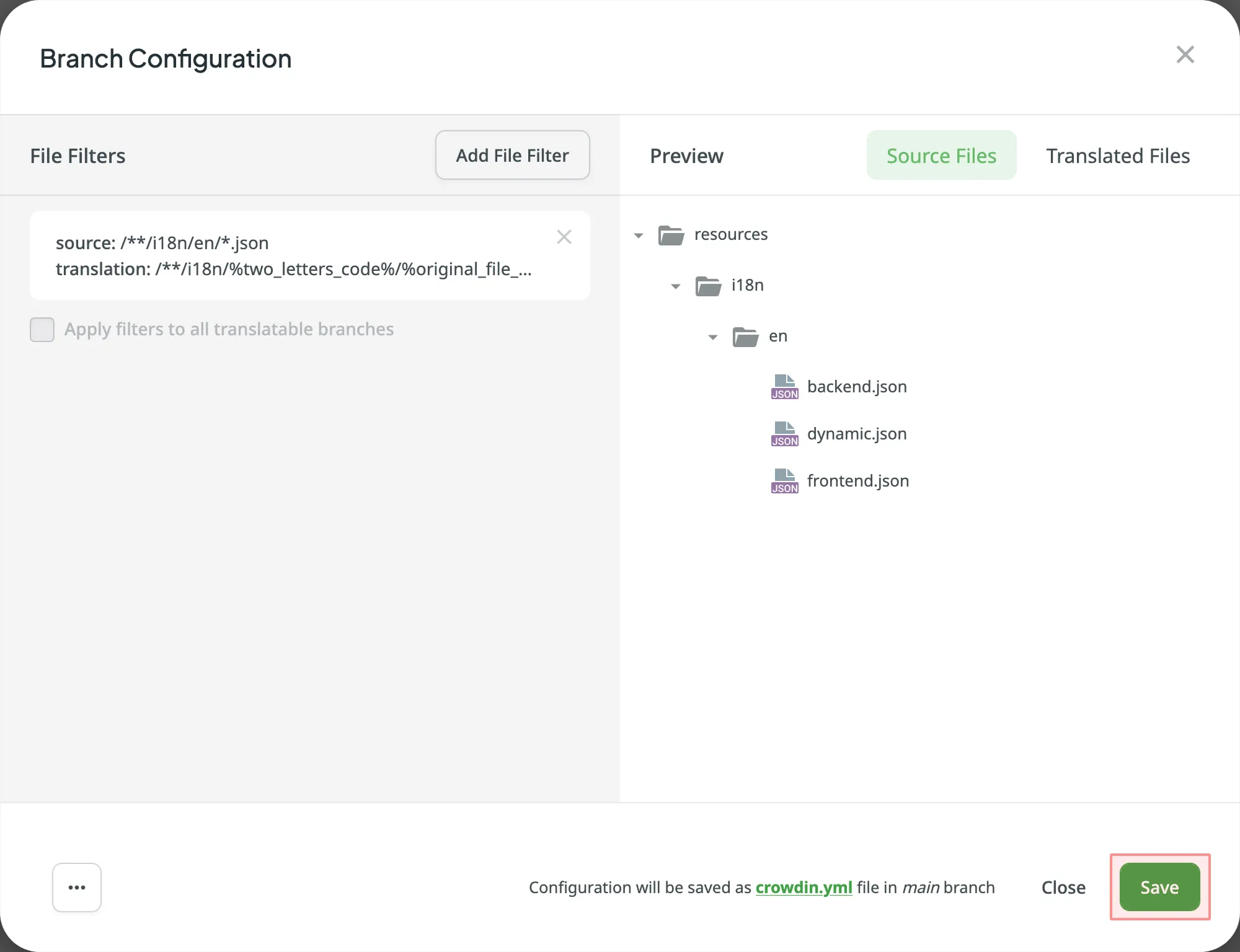
Çeviri için deponuzu ve dalınızı seçtikten sonra, bir sonraki adım seçilen dalı yapılandırmaktır. Click to open the Branch Configuration dialog and start the configuration. In the Branch Configuration dialog, you can either load the existing configuration file stored in your repository or create a new configuration from scratch.
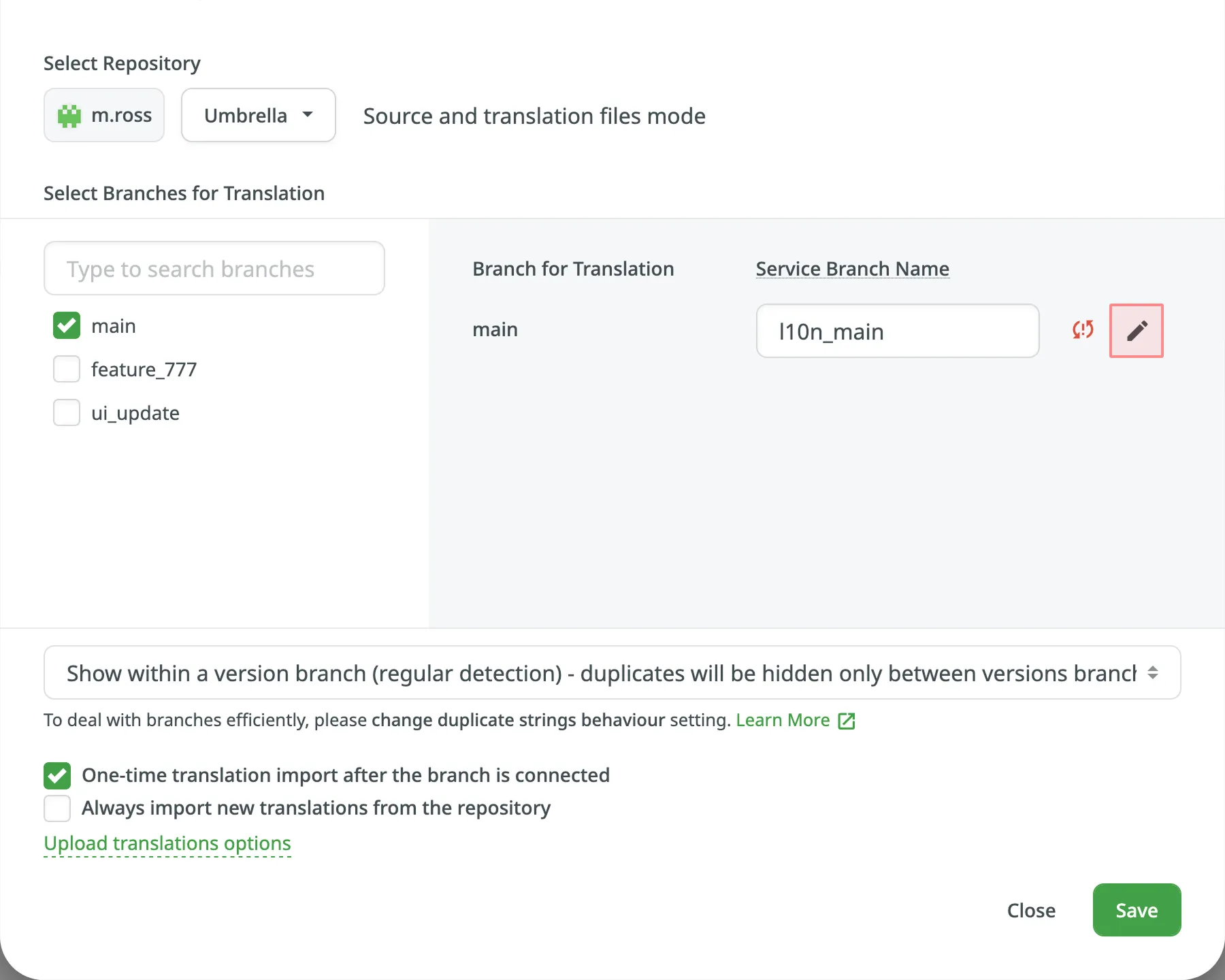
If you want your VCS integration to work in the Target File Bundles Mode, you need to configure target file bundles for each branch you have selected for translation.
VCS bütünleştirmesi için hedef dosya paketlerini yapılandırma hakkında daha fazlasını okuyun.
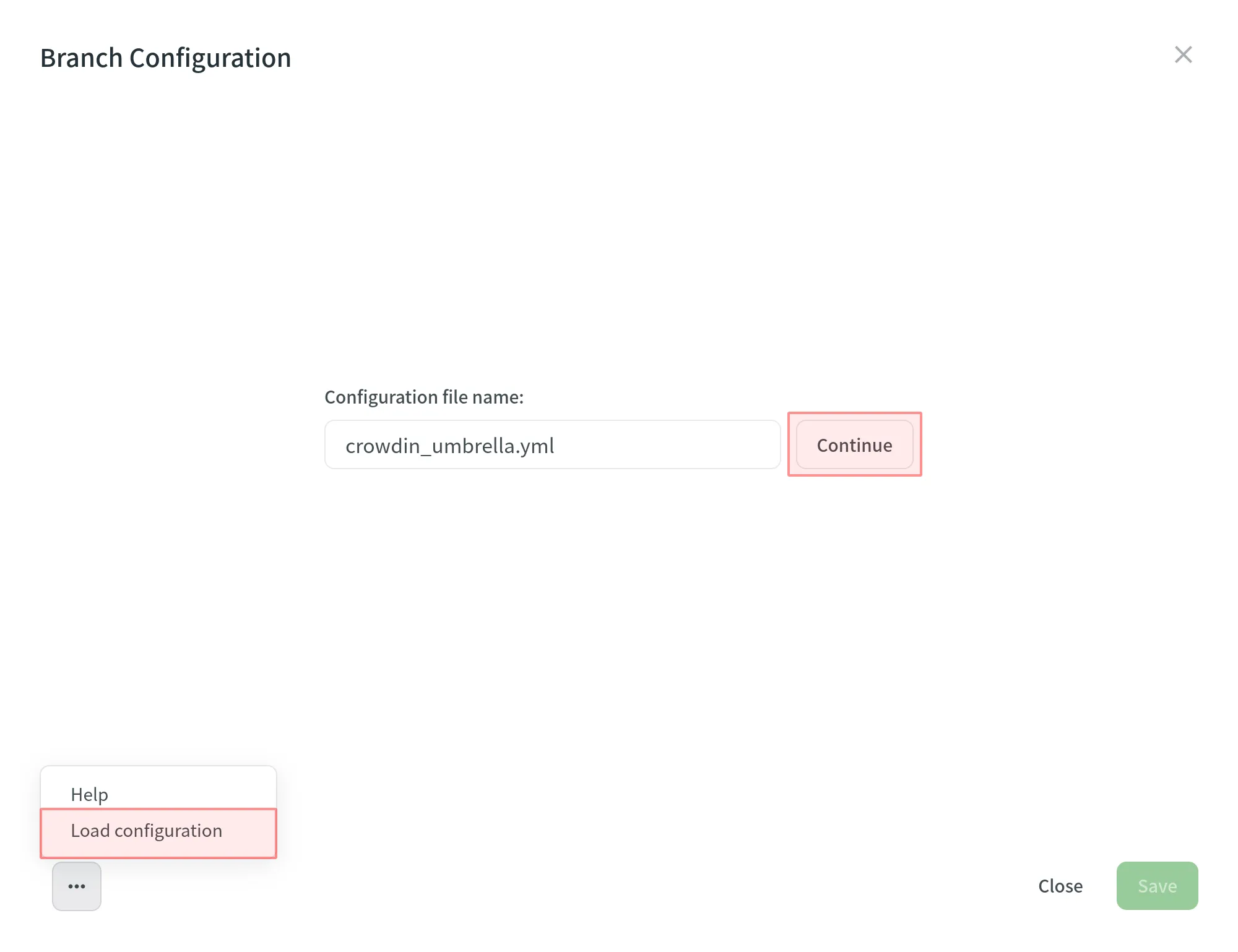
Deponuzda saklanan varolan yapılandırma dosyasını yüklemek için şu adımları izleyin:
- simgesine tıklayın ve Yapılandırmayı yükle’yi seçin.
- Deponuzda yapılandırma dosyasının adını belirtin.
- Click Continue.
The configuration will be displayed in the Branch Configuration dialog. Olduğu gibi kullanabilir veya gerekirse değiştirebilirsiniz.
To create a new configuration file to be used by the integration, specify the preferred name and click Continue in the Branch Configuration dialog.
Ardından, aşağıda listelenen şekilleri ve yer tutucuları kullanarak kaynak ve çevrilmiş dosya yollarını belirtin. Sağ panelde, çeviri için yüklenecek kaynak dosyaların yapısını ve belirtilen yollara dayanan çevrilmiş dosyaların yapısını önizleyebilirsiniz.
Seçilen dal için yapılandırmayı ayarlamayı bitirdikten ve değişiklikleri kaydettikten sonra yapılandırma dosyası, deponuzdaki çeviri dalının kök dizinine kaydedilecektir.
You can use wildcard (*, **, ?, [set], \) patterns to specify which files should be uploaded for translation.
Read more about wildcard patterns.
Çevrilen dosyaların nereye yerleştirileceğini ve nasıl adlandırılacağını belirtmek için yer tutucuları kullanın:
| Name | Description |
|---|---|
%original_file_name% | Original file name |
%original_path% | Take parent folder names in the Crowdin project to build file path in the resulting bundle |
%file_extension% | Original file extension |
%file_name% | File name without extension |
%language% | Language name (e.g., Ukrainian) |
%two_letters_code% | Language code ISO 639-1 (e.g., uk) |
%three_letters_code% | Language code ISO 639-2/T (e.g., ukr) |
%locale% | Locale (e.g., uk-UA) |
%locale_with_underscore% | Locale (e.g., uk_UA) |
%android_code% | Android Locale identifier used to name “values-” directories |
%osx_code% | OS X Locale identifier used to name “.lproj” directories |
%osx_locale% | OS X locale used to name translation resources (e.g., uk, zh-Hans, zh_HK) |
The advanced settings provide more control over the integration’s behavior. You can specify files to be excluded from translation, map custom language codes, and configure parsing options for structured file formats, such as spreadsheets and XML. This section also covers additional parameters that can be configured by manually editing the crowdin.yml file in your repository.
Eğer bazı dosyaların çevrilmesini istemiyorsanız, Yoksayılan şekil ekle’ye tıklayın, bu dosyalar için şekli belirtin ve Crowdin bu dosyaları çeviri için yüklemeyecektir.
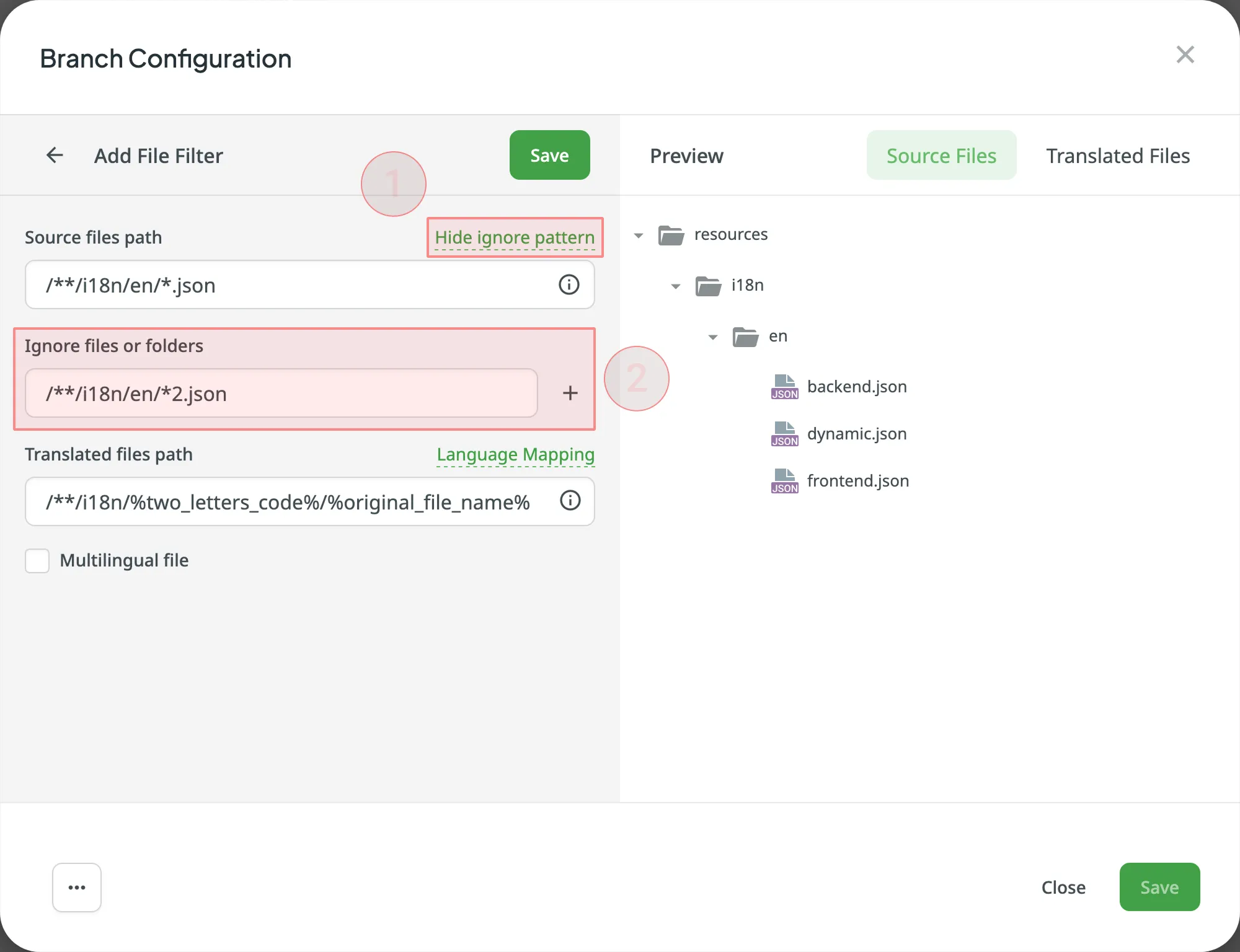
Eğer projeniz yerel dizinleri için özel adlar kullanıyorsa, Crowdin tarafından tanınmak üzere kendi dillerinizi eşlemek için dil eşlemeyi kullanabilirsiniz.
Bir dil eşlemesi eklemek için şu adımları izleyin:
- Click Language Mapping.
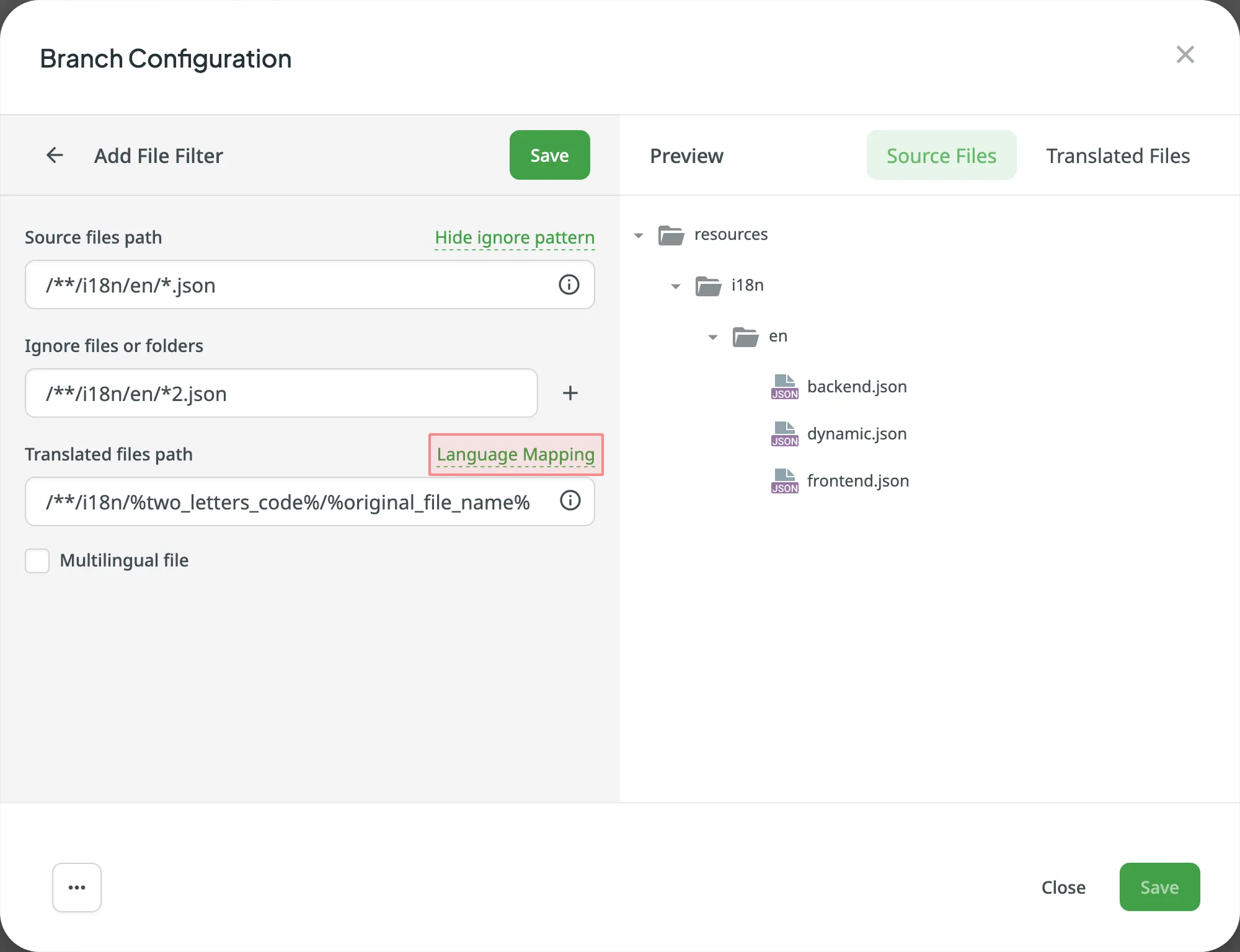
- Gerekli dili ve bir yer tutucuyu seçin.
- Özel kodunuzu belirtin.
- Click Add Mapping to add another custom code.
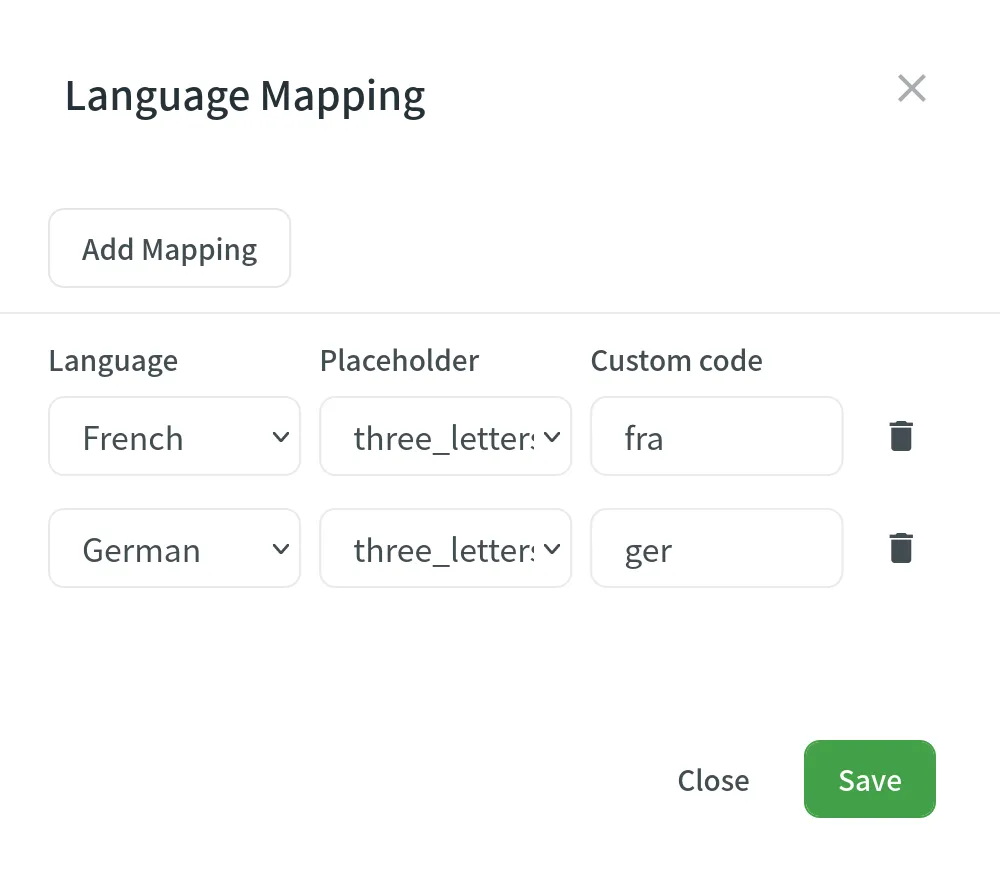
- Kaydet’e tıklayın.
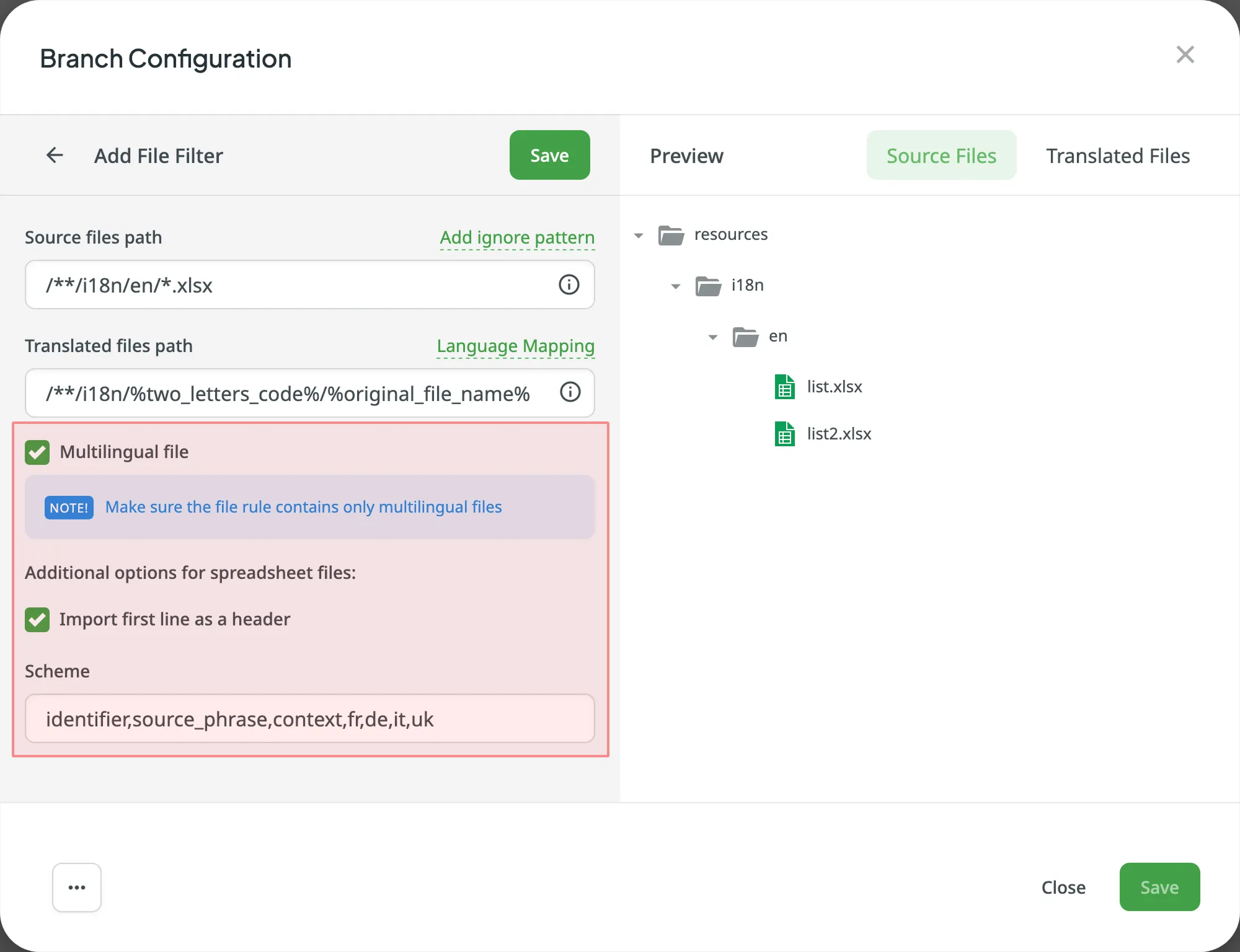
You can specify the scheme of your spreadsheet file in the Scheme field. CSV veya XLS/XLSX dosyanız için şemayı oluşturmak amacıyla aşağıdaki sabitleri kullanın:
identifier– column contains string identifiers.source_phrase– column contains source strings.source_or_translation– column contains source strings, but the same column will be filled with translations when the file is exported. Eğer varolan çevirileri yüklerseniz, bu sütundaki değerler çeviriler olarak kullanılacaktır.translation– column contains translations.context– column contains comments or context information for the source strings.max_length– column contains max.length limit values for the string translations.labels– column contains labels for the source strings.none– column that will be skipped during import.
Scheme example: identifier,source_phrase,context,fr,de,it,uk (Language Codes).
If a spreadsheet contains the translations for several target languages, select Multilingual file. If you don’t want to translate the text stored in the first row, select Import first line as a header.
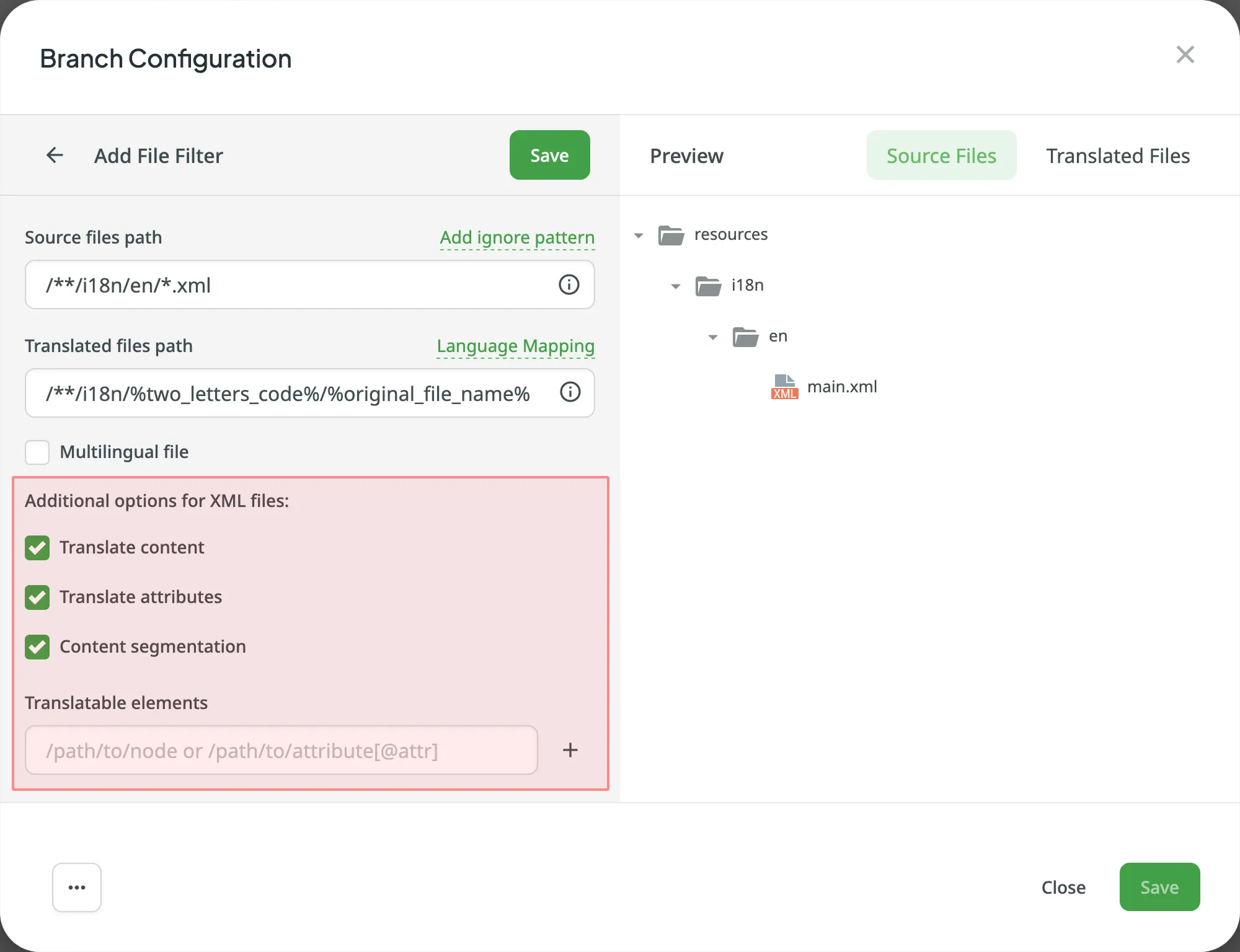
Crowdin’in XML dosyalarını nasıl işlemesi gerektiğini belirlemek için XML dosyası içe aktarma ayarlarını yapılandırabilirsiniz.
| Option | Description |
|---|---|
| Translate Content | Etiketlerin içinde saklanan metinleri çevirmek için seçin. |
| Translate Attributes | Etiket özniteliklerini çevirmek için seçin. |
| Content Segmentation | Select to split the XML source file’s content into shorter text segments. |
| Translatable Elements | Bu, XPaths olan yerdeki her öğenin DOM öğesine aktarılması gereken dizgilerin bir dizilimidir. Sample path: /path/to/node or /path/to/attribute[@attr] |
Aşağıdaki parametreler çevrimiçi olarak yapılandırılamaz:
preserve_hierarchy- Crowdin’de dizin yapısını korurdest- Crowdin’de bir dosya adı belirlemenizi sağlartype- Crowdin’de bir dosya türü belirlemenizi sağlarupdate_option- keeps translations and keeps/removes approvals of changed strings during a file updatecommit_message- additional text appended to the default commit messageappend_commit_message- controls whether your custom text is appended to or replaces the default commit messageexport_languages- export translations for the specified languages
Once you save the online configuration, a crowdin.yml file is saved in the root of the configured branch in your repository. Gerekli parametreleri eklemek için bu dosyayı el ile düzenleyebilirsiniz.
Read more about the configuration file.
- Oluşturulan yapılandırmayı önizlemek için Kaydet’e tıklayın.
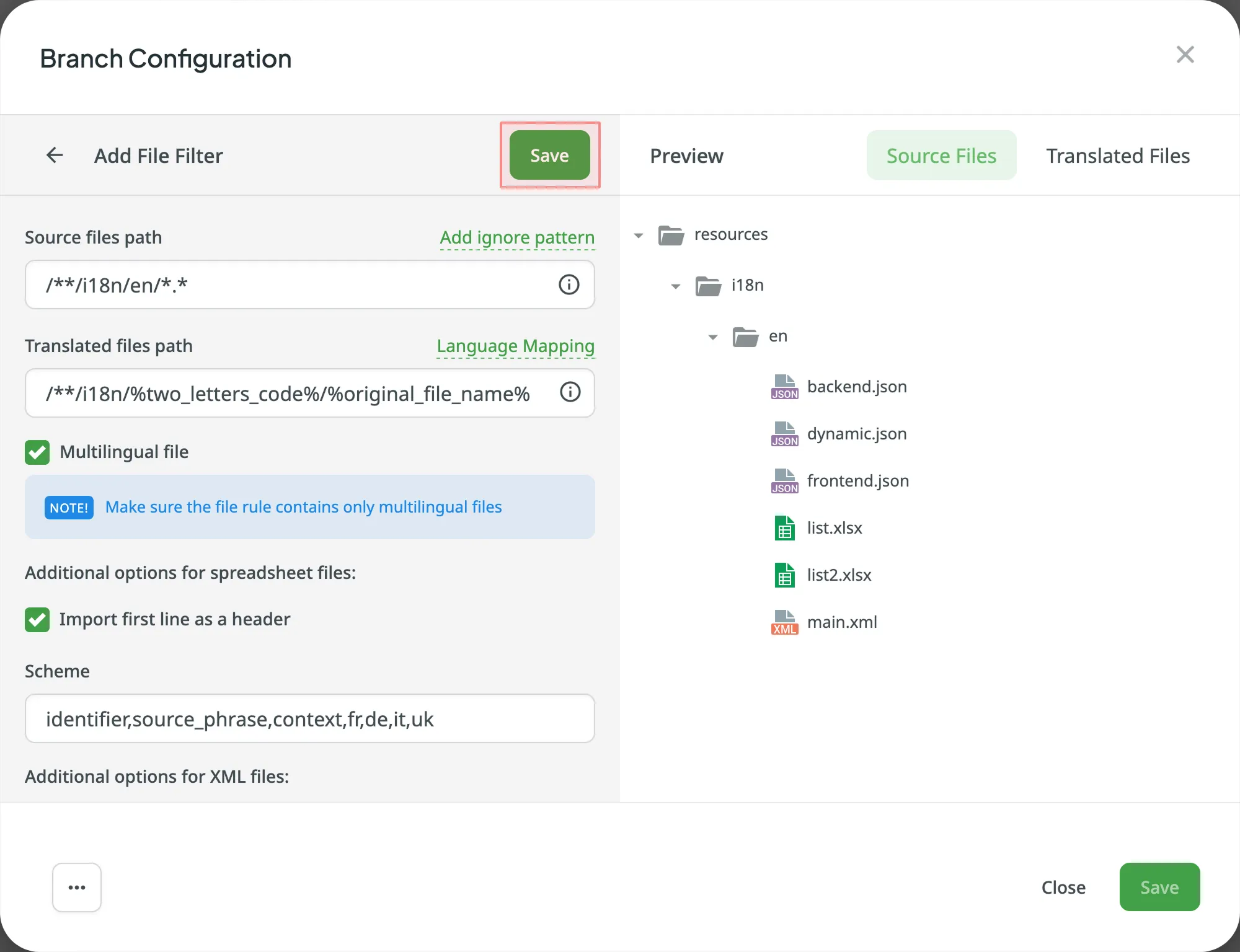
- Click Add File Filter if you have multiple file groups with different configurations.
If several branches in the project have the same configuration, and you want the same filters to be applied to them, select Apply filters to all translatable branches. - Click Save to save the created configuration.
Yapılandırma kaydedildikten sonra, yerelleştirilebilir dosyalar Crowdin projenize yüklenmeye başlayacaktır.